Use Notion for Personal Finance with Real Bank Data
Notion has become one of the most popular tools for building personal finance systems. Its flexible database structure, powerful filtering and grouping, and the ability to combine notes with data make it uniquely suited for financial tracking. But there's a catch: Notion is only as good as the data inside it. If your bank transaction data is not in Notion, or is stale and incomplete, your finance system falls apart. Here's how to build a Notion finance system powered by real, live bank data.

Why Notion Works for Personal Finance
Traditional personal finance apps are powerful but rigid. YNAB forces you into a zero-based budgeting framework. Mint (now defunct in the US) categorised everything automatically but gave little customisation. Notion takes the opposite approach: it gives you nothing out of the box, but you can build exactly the system you want.
For people who want to combine their finance tracker with their life planner, linking spending data to goals, projects, or even journal entries, Notion is unmatched. You can build a dashboard that shows your current month's expenses, links to your annual financial goals, and reminds you of upcoming recurring payments, all in one place.
The One Thing Notion Can't Do Alone: Get Bank Data
The fundamental limitation of Notion for finance is data ingestion. Unlike YNAB or Mint, Notion has no bank connections. Transaction data has to come from somewhere. Your options are:
- Manual entry: Works for cash transactions, but completely impractical for bank accounts
- CSV import: Better, but requires manual effort every week and Notion's CSV import is not designed for ongoing updates
- Automatic sync via Manio: The only sustainable option for keeping bank data current
With Manio's Notion integration, your Brazilian bank transactions appear in Notion automatically, using Open Finance Brasil to read your bank data and the official Notion API to write it to your database. Want to understand how Open Finance protects your data? Read our guide on Open Finance security.
Building the Foundation: Your Transaction Database
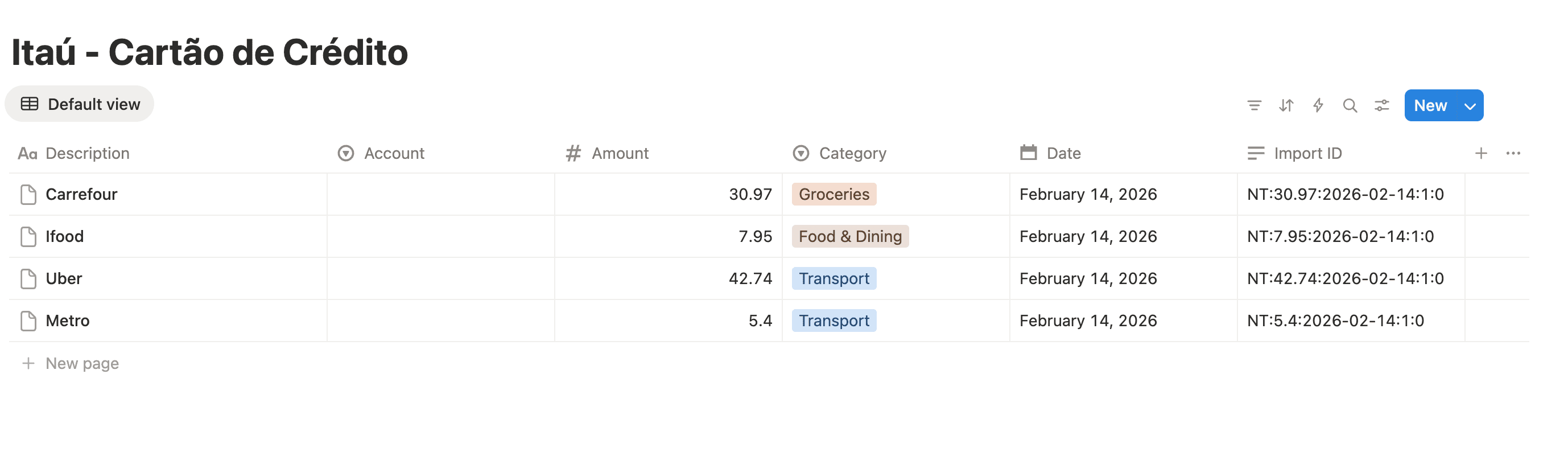
Start with a clean, well-structured transaction database. The properties Manio populates automatically:
- Description: the merchant name, as the title property
- Date: transaction settlement date
- Amount: BRL value, positive for income, negative for expenses
- Category: filled by AI categorisation when it is enabled on your plan and on the link
- Account: which bank account or card the transaction came from
- Import ID: used to avoid importing a transaction twice
The properties you add yourself:
- Reviewed: Checkbox (to mark processed transactions)
- Notes: Rich text (for context on unusual transactions)
- Tags: Multi-select (for flexible cross-category tagging)
Essential Views to Build
1. Monthly Expense View
Filter: Date is this month. Group by: Category. Sort by: Total amount (descending). This gives you an instant breakdown of where your money went this month. Toggle group totals on to see the sum per category.
2. Uncategorised Inbox
Filter: Reviewed is unchecked + Date is this month. This is your weekly to-do: open this view, categorise each transaction, check it off. When the view is empty, you are done. This view makes the categorisation habit manageable. You only see what needs attention.
3. Income vs. Expense Summary
Create two filtered views on a summary page: one filtered to positive amounts (income), one to negative amounts (expenses). Use Notion formulas on a database or a linked summary database to calculate net cash flow for the month.
4. Top Merchants
Group by Description (merchant). Sort by count descending. This view shows your most frequent merchants, great for spotting subscriptions, evaluating habits, and identifying costs you could reduce.
5. Account Balances
Filter to show only the most recent transaction per account. Notion is not a real accounting system so a live balance view requires some workarounds, but you can build a reasonably accurate snapshot using recent transactions.
Linking Transactions to Financial Goals
One of Notion's most powerful features for finance is the ability to link databases. Create a separate "Goals" database with entries like "Emergency Fund", "Vacation to Europe", or "New Computer". Create a relation property in your transactions database that links relevant transactions to goals. Then use a rollup to see how much of your income this month went toward each goal.
Which Banks Can Feed Your Notion System?
All major Brazilian banks participate in Open Finance Brasil, which means Manio can connect to all of them: Nubank, Itaú, Bradesco, Santander, Banco do Brasil, Caixa, Inter, C6 Bank, and many more. You can connect multiple banks and route all transactions to the same Notion database, or separate databases if you prefer to keep them apart.
Check out how Manio's Notion integration works in detail, including what data is sent and how deduplication ensures your database stays clean.
Notion Finance System vs. Dedicated Apps
Should you use Notion for finance instead of YNAB or a spreadsheet? It depends on your style:
- Choose Notion if you want flexibility, integration with your life notes, and enjoy building systems
- Choose YNAB if you want structured budgeting methodology with envelope-style allocation
- Choose Google Sheets if you want formulas and data manipulation power without monthly subscription costs
The good news: with Manio, you can use any of these destinations, or multiple at once. Connect your bank once and route transactions to YNAB, Notion, and Google Sheets simultaneously. Manio has a Trial plan with 1 bank connection, daily sync, and 50 syncs. The Pro plan costs R$24.99/month (or R$239.88/year), with unlimited syncs, up to 4 banks, sync every 8 hours, full history, and AI categorization.
For bank-specific Notion guides, see how to sync Nubank to Notion and how to connect Itau to Notion automatically. For a general overview of automating bank data into Notion, check out how to automate bank data to Notion.
For more on using Google Sheets alongside Notion, read how to sync Brazilian bank transactions to Google Sheets.