How to Automate Bank Data in Notion
Notion is increasingly popular as a personal finance tool. Its flexible database structure lets you build a finance system exactly the way you want it, with custom properties, views, and formulas tailored to your needs. The challenge is getting real bank data in without spending hours on manual entry. Manio solves this by automatically pushing your Brazilian bank transactions into Notion.

The Problem with Manual Entry in Notion
Many people try to use Notion for finance tracking, but quickly hit the same wall: they have to manually add every transaction. Even if you set up a beautiful database with all the right properties, it only works if you actually fill it in. Most people manage for a few weeks, then give up because it is too time-consuming.
The alternative, importing CSV files from your bank, is better but still requires manual effort every week, plus Notion's CSV import does not support ongoing incremental updates. It works for one-time imports but not for a live finance tracker.
How Automatic Bank Sync Changes the Equation
With Manio's Notion integration, your bank transactions appear in Notion automatically, without any manual work after the initial setup. This changes the value proposition of your Notion finance system entirely: instead of a system that requires constant maintenance, it becomes a living dashboard that's always current.
You open Notion on Monday morning and last week's transactions are already there. You categorise them, run your analysis, and you are done in minutes. The data entry part is fully automated.
Technical Overview: How It Works
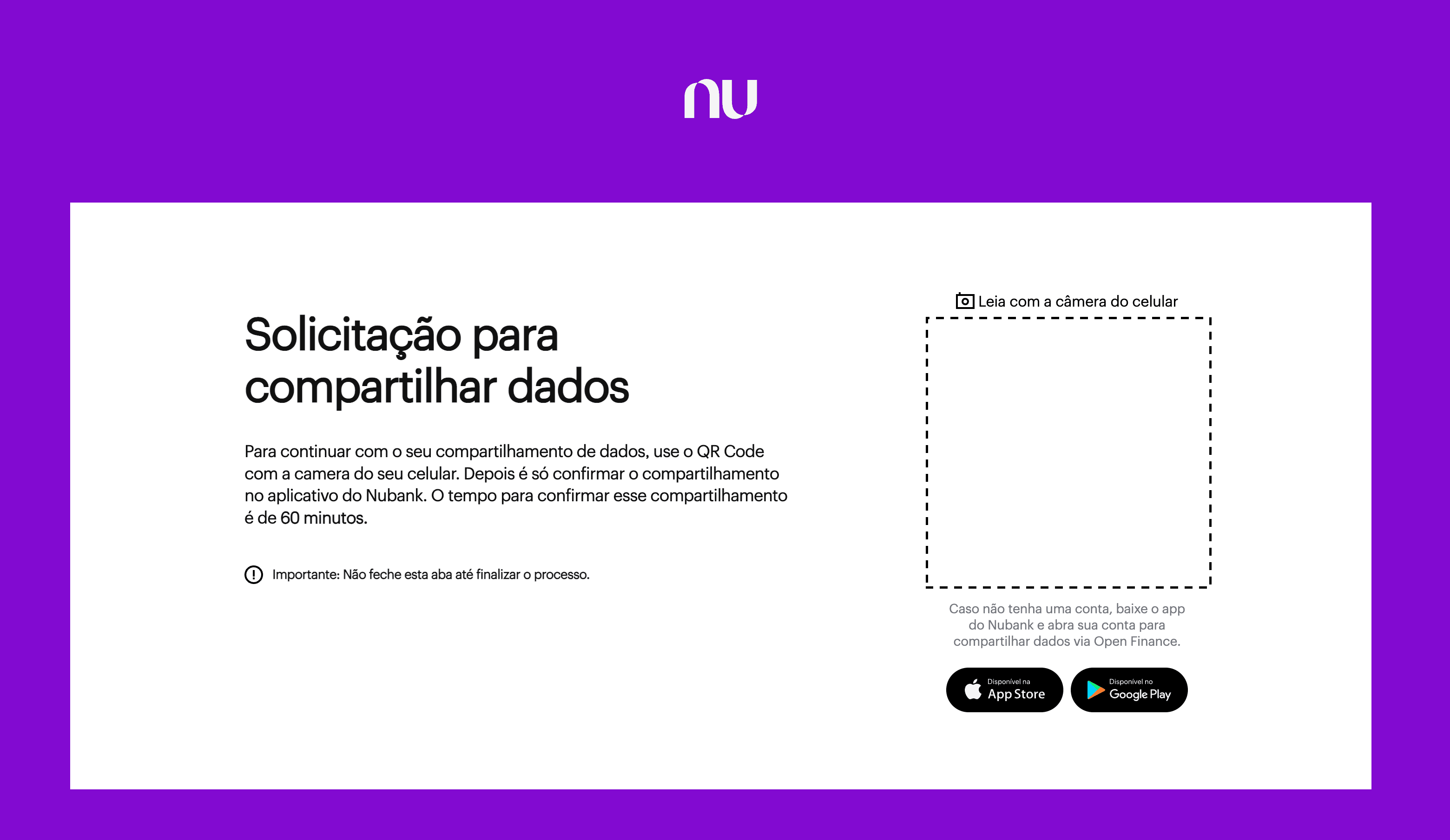
Manio is an authorised Open Finance Brasil participant. This means it can request, with your consent, read-only access to your bank transaction data through Brazil's official banking API standard.
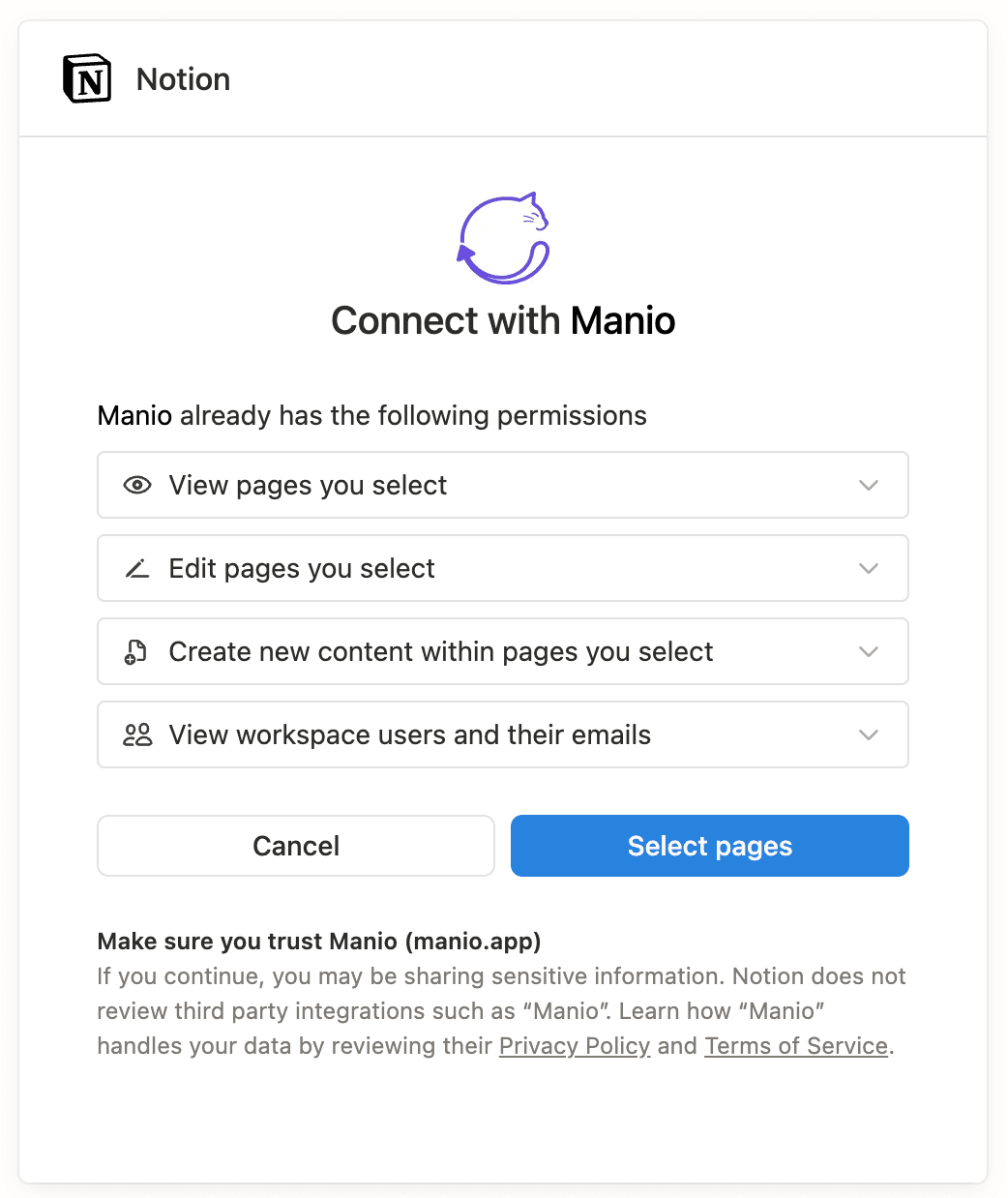
On the Notion side, Manio connects to your workspace through the official Notion API using OAuth. You grant Manio access to a specific database, and it writes transaction entries to that database on a schedule. When Notion asks which pages to share, select the page where your transactions database lives. The connection is secure on both ends. Your bank password is never shared, and Manio only writes to the specific database you selected. Want to understand how Open Finance protects your data? Read our guide on Open Finance security.
Designing Your Notion Finance Database
Before connecting, think about how you want to structure your Notion database. Here is a recommended property setup:
Manio creates and fills six properties:
- Description (Title): the merchant name
- Date: transaction date property
- Amount: Number property
- Category: Select property, filled by AI categorisation when it is enabled on your plan and on the link
- Account: Select property naming the source account or card
- Import ID: Text property Manio uses to avoid importing a transaction twice
Anything else you add stays yours. Reviewed (checkbox), Notes and Tags are not written to, and Manio never modifies an entry you have already edited.
Which Banks Are Supported?
Manio supports all banks participating in Open Finance Brasil, including:
- Nubank (conta corrente and credit card)
- Itaú (all account types)
- Bradesco
- Santander
- Banco do Brasil
- Caixa Econômica Federal
- Inter, C6 Bank, Next, Neon, and dozens more
If your bank participates in Open Finance Brasil (which all major banks are now required to do), it works with Manio.
Building Views on Top of Synced Data
This Month's Expenses
Create a filtered view: Date is this month + Amount is less than 0. This shows all expenses for the current month. Group by Category to see spending by category.
Weekly Review View
Create a filtered view: Reviewed checkbox is unchecked. Use this as your weekly inbox. Categorise and check off transactions as you review them. When the view is empty, you're done.
Recurring Expenses
Create a gallery view grouped by Description (merchant). Sort by count. Entries that appear every month are your recurring subscriptions and fixed expenses, which is a great starting point for budget analysis.
Keeping Multiple Bank Accounts in One Database
If you have accounts at multiple banks, Manio can sync all of them into the same Notion database. The Account property tells you which bank each transaction came from. You can filter by account to see individual bank statements, or view everything together for a complete picture.
Frequency and Reliability
On the Trial plan, Manio syncs daily (50 syncs included). On the Pro plan, every 8 hours with unlimited syncs. Manio uses transaction IDs from the Open Finance API to ensure each transaction is only written once, so there are no duplicates even if the sync runs multiple times over the same period.
You can also trigger manual syncs from the Manio dashboard whenever you want to see the latest transactions without waiting for the next scheduled run.
For bank-specific Notion guides, see how to sync Nubank to Notion and how to connect Itau to Notion automatically. For tips on building a complete finance system in Notion, check out our guide on using Notion for personal finance with bank sync.
If you are also interested in connecting your bank to YNAB, read does YNAB work with Brazilian banks. For a spreadsheet alternative, see how to sync Brazilian bank transactions to Google Sheets.