How to Connect Itaú to Notion Automatically
Itaú is one of Brazil's largest and most trusted banks. Notion is one of the most flexible productivity tools available today, and for many people, it has become their personal finance hub. If you use both, you have probably wished they could talk to each other automatically. With Manio, they can.

Why Connect Itaú to Notion?
Notion's database feature is uniquely powerful for financial tracking. Unlike rigid apps, you can customise exactly what properties each transaction has, build custom views (by category, by month, by amount), and create linked databases that relate transactions to budget goals. The problem is that Notion doesn't have any native bank connection, so you have to get the data in yourself.
For Itaú users, the traditional approach involved exporting CSV files from the Itaú internet banking portal and manually pasting data into Notion. This is time-consuming, and Notion's CSV import is designed for one-time imports, not ongoing transaction tracking.
How Manio Bridges Itaú and Notion
Itaú participates in Brazil's Open Finance framework, which means it exposes a standardised API for transaction data. Manio is an authorised Open Finance Brasil participant that reads from this API and pushes transaction data into Notion databases automatically.
The Manio Notion integration connects to your Notion workspace via the official Notion API. You select which database receives the transactions, and Manio creates a new entry for each transaction, including date, amount, merchant, and source account.
Step-by-Step: Connecting Itaú to Notion
Step 1: Create a Transaction Database in Notion
Before connecting, set up your Notion database. A good starting structure includes:
- Description: Title property, holding the merchant name
- Date: Date property
- Amount: Number property
- Category: Select property, filled by AI categorisation when it is enabled on your plan and on the link
- Account: Select property, to distinguish multiple accounts
- Import ID: Text property Manio uses to avoid importing a transaction twice
These are the six properties Manio creates and fills. Letting Manio create the database during setup gives you all of them. In a database of your own it adds the five non-title properties and uses your existing title column for the merchant name. To have it fill a column you already use, rename yours to match and set its type accordingly; a matching name with the wrong property type fails the sync.
Step 2: Connect Itaú via Open Finance
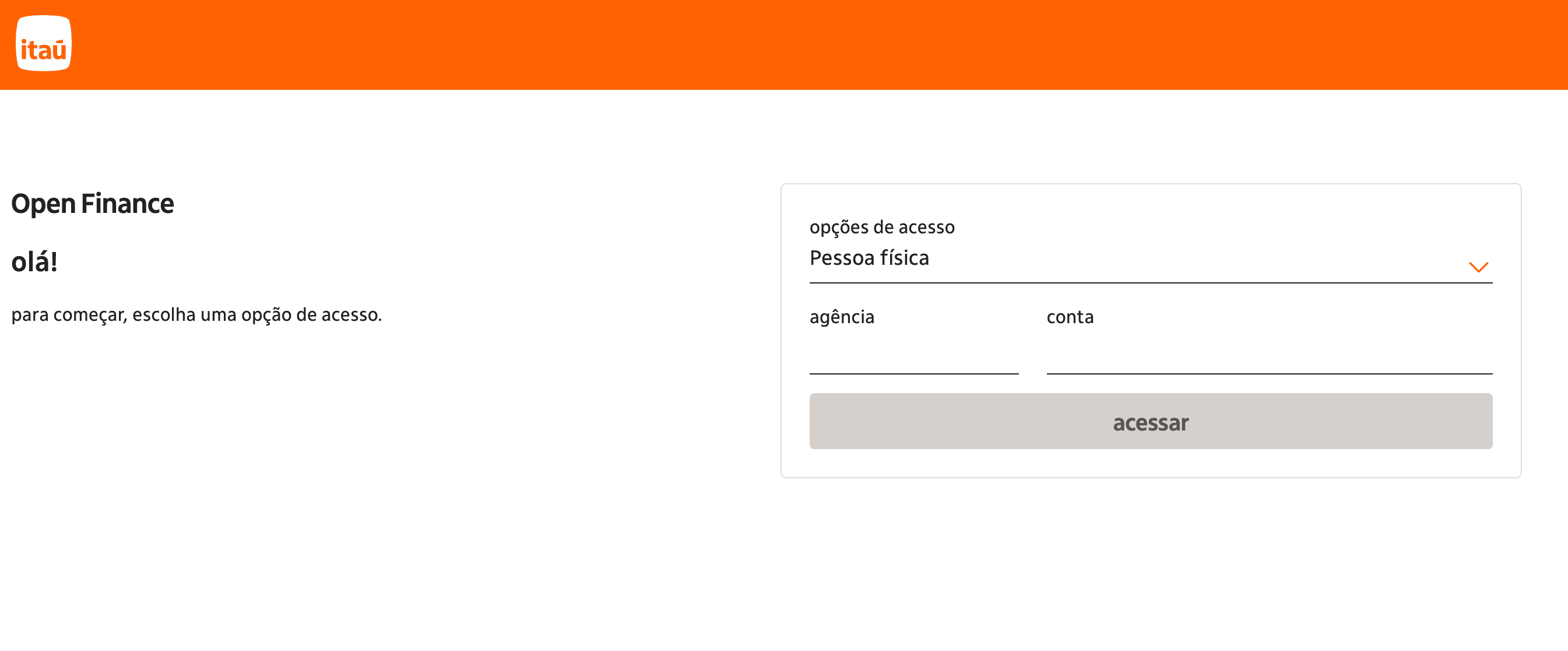
In the Manio dashboard, go to "Bank Connections" and search for Itaú. Manio will redirect you to Itaú's official Open Finance consent screen. Log in with your Itaú credentials on Itaú's own servers Manio never sees your password. Choose which accounts (checking, savings, credit card) to share. Want to understand how Open Finance protects your data? Read our guide on Open Finance security.
Step 3: Connect Notion
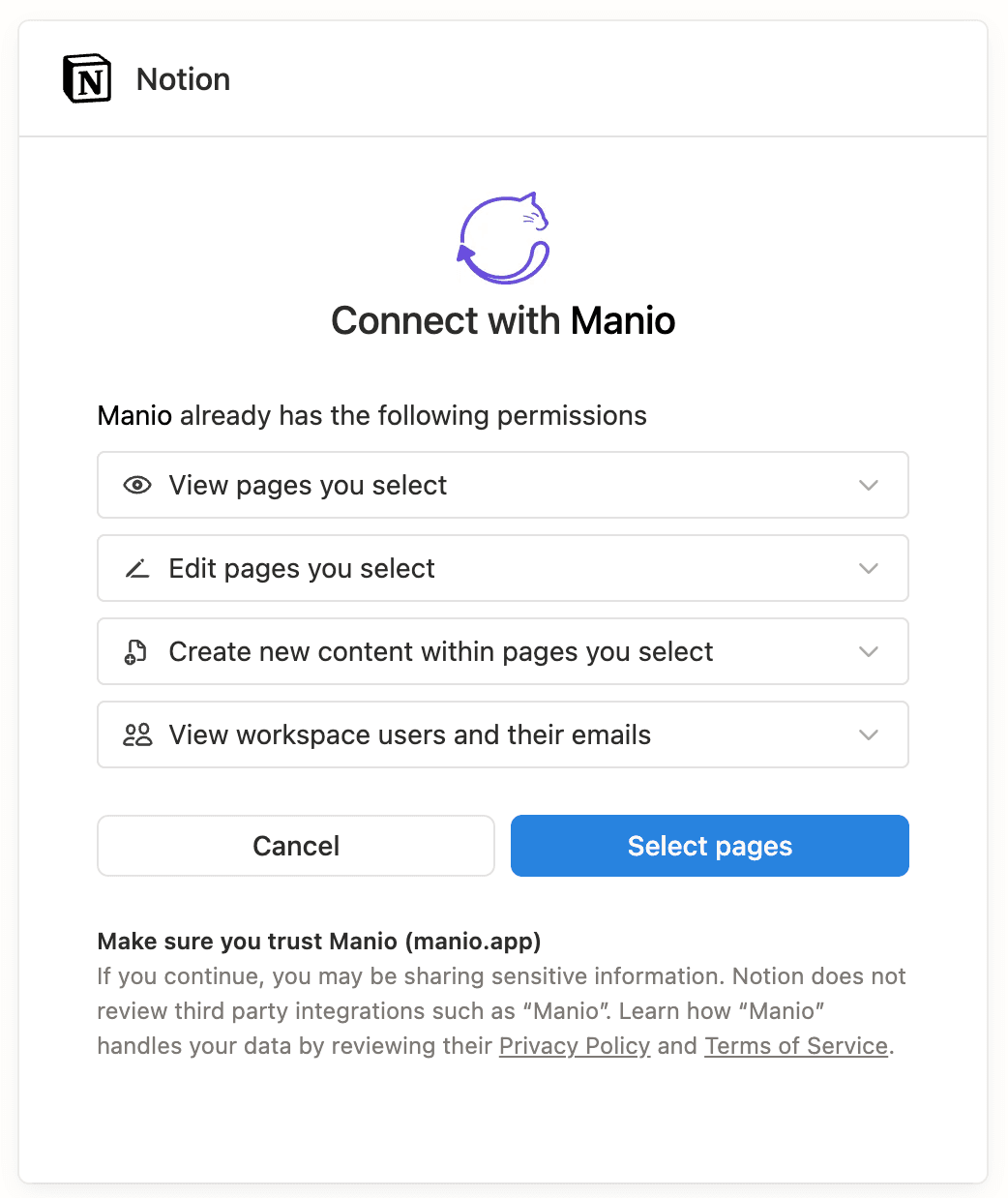
Go to "Destinations" and add Notion. Authorise Manio through the official Notion OAuth flow. Select the workspace and the specific database you created in Step 1. When Notion asks which pages to share, make sure to select the page where your transactions database lives.
Step 4: Map Itaú Accounts to Notion
Create account links connecting each Itaú account to your Notion database. You can send all accounts to the same database (the Account property differentiates them) or set up separate databases for each account type.
Step 5: Run First Sync
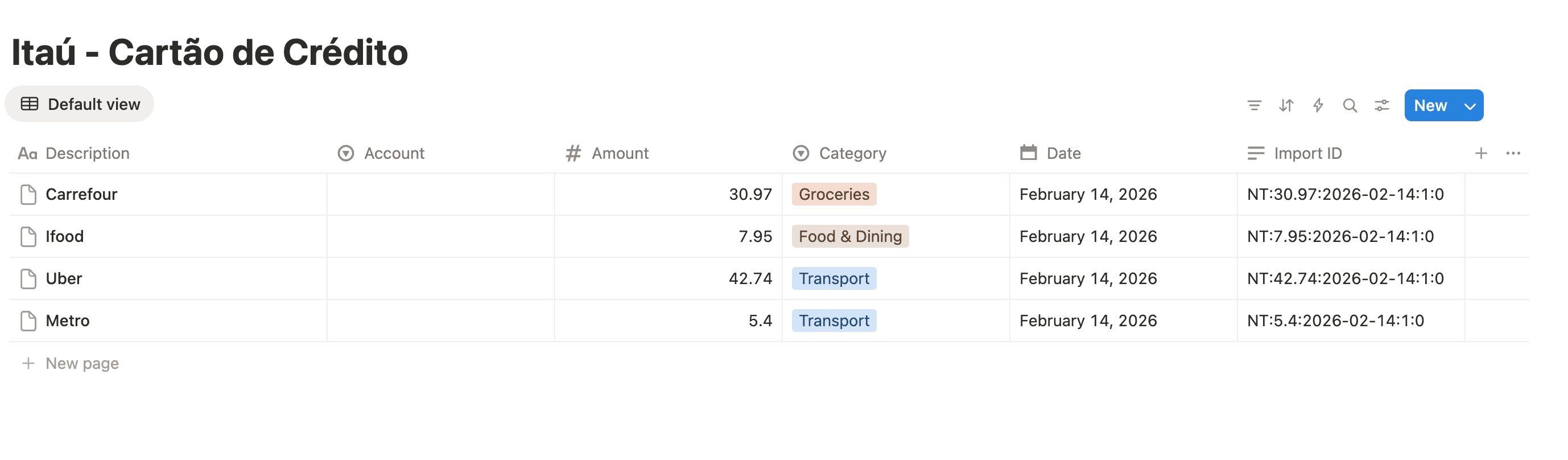
Trigger an initial sync from the Manio dashboard. On the Pro plan, Manio imports all the Itaú history the bank makes available via Open Finance (typically around 12 months). On the Trial plan, the first sync covers up to 30 days. History will appear in your Notion database within minutes, and subsequent syncs happen automatically.
Building a Finance System Around Your Itaú Data
Monthly Spending Views
Create a filtered view showing only transactions from the current month. Group by Category to see your spending breakdown. Add a sum of the Amount property to see your total spend for the month.
Category Budget Tracking
Create a linked database that tracks your monthly budget per category. Link it to your transactions database and use Notion's rollup feature to automatically calculate how much you have spent vs. budgeted in each category.
Merchant Analysis
Create a view grouped by the Description (merchant) property. Sort by count or total amount to see which merchants you spend the most money at. This view is great for identifying subscriptions you forgot about or recurring expenses you can reduce.
What About Itaú Credit Cards?
Itaú credit card transactions (cartão de crédito) are supported separately from checking account transactions through Open Finance Brasil. When connecting, you can choose to include your credit card accounts. Manio tracks them separately so you can distinguish between debit and credit spending in Notion.
Works with Other Brazilian Banks Too
If you have accounts at multiple banks, say Itaú and Nubank, you can connect both to the same Notion database. The Account property in each transaction entry shows which bank it came from. This gives you a unified view of all your Brazilian banking activity in one place. Manio's Trial plan includes 1 bank connection, daily sync, and 50 syncs. The Pro plan (R$24.99/month, or R$239.88/year) adds unlimited syncs, up to 4 banks, sync every 8 hours, full history, and AI categorization.
See also how to sync Nubank to Notion and our guide on using Notion for personal finance with bank sync. For a general overview of automating bank data into Notion, check out how to automate bank data to Notion.
If you prefer spreadsheets, see how to sync Itau to Google Sheets. If you use YNAB for budgeting, see how to sync Itau to YNAB.