How to Sync Nubank to Notion Automatically
Notion has become one of the most popular personal productivity tools in Brazil, and it is natural to want your financial data there too. If you use Nubank, Brazil's largest digital bank with over 90 million customers, and you have tried to track your spending in Notion, you have probably hit the same wall everyone else hits: the data entry. Building a Notion finance database is the easy part. Keeping it up to date is where people give up. This guide explains how to automate the process using Manio and Open Finance Brasil.

Why Notion for Personal Finance?
Notion offers something that dedicated finance apps cannot: complete structural flexibility. You design the database schema, choose the properties, build the views, and integrate your financial tracking with every other area of your life: goals, projects, habits, weekly reviews. Unlike Organizze or Mobills, which impose a fixed structure, Notion lets you build exactly the system you want.
The catch is that Notion has no built-in bank connection. It is a productivity tool, not a banking app. And Notion's CSV import creates a new database each time rather than appending rows to an existing one, making it unsuitable for ongoing financial tracking.
The real solution is API-based automation: a service that writes transactions directly into your Notion database, row by row, without manual intervention.
How Manio Bridges Nubank and Notion
Manio is an authorised Open Finance Brasil participant. It connects to Nubank through Brazil's official banking API, with your consent and without ever seeing your password, and writes each transaction into your Notion database through Notion's official API.
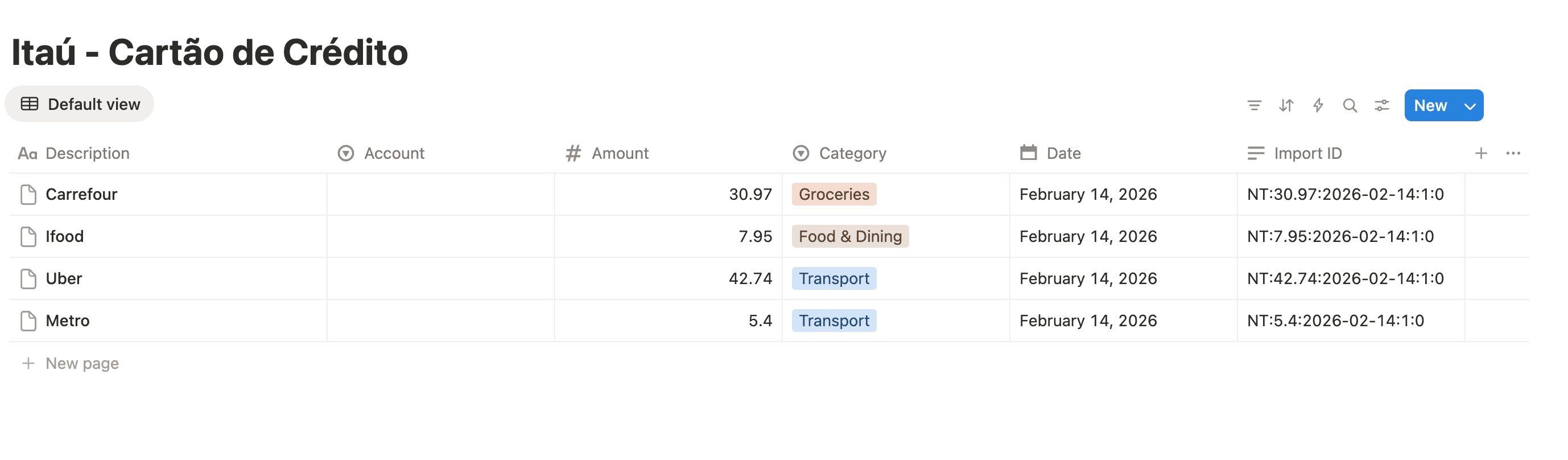
The result: every new Nubank transaction automatically becomes a Notion database entry with properties filled in: merchant name, date, amount, category, and source account. You only need to categorise and review.
What Nubank Data Comes Through
Nubank participates fully in Open Finance Brasil. As a digital-native bank, its API implementation is thorough. Through the connection, you get:
- Checking account (conta corrente): Pix transfers (sent and received), debit purchases, TEDs, bill payments, internal transfers between Nubank accounts
- Credit card: individual purchases including instalments. A purchase made in 6 monthly instalments appears as 6 separate entries, one per billing month
Merchant names are cleaned up by Manio for readability. Instead of raw codes like "PIX 12345 JOAO S", you see recognisable names. This makes a significant difference when categorising transactions in Notion.
Setting Up the Sync: Step by Step
Step 1: Design Your Notion Database
The simplest route is to let Manio create the database during setup. It arrives with the six properties Manio fills:
- Description (Title): the merchant name
- Date: Date property
- Amount: Number property
- Category: Select property, filled by AI categorisation when it is enabled on your plan and on the link
- Account: Select property naming the source (Nubank Checking, Nubank Credit Card)
- Import ID: Text property Manio uses to avoid importing a transaction twice
To use a database you already have, Manio adds the five non-title properties to it without touching yours, and writes the merchant name into whatever your title column is already called. To have it fill a column you already use, rename yours to the name above and set its type to match (Select for Category and Account, Number for Amount, Date for Date, Text for Import ID); a matching name with the wrong type fails the sync. Extra properties such as Reviewed (checkbox), Notes and Tags stay yours: Manio never writes to them, and it never modifies an entry you have already edited.
Step 2: Connect Nubank via Open Finance
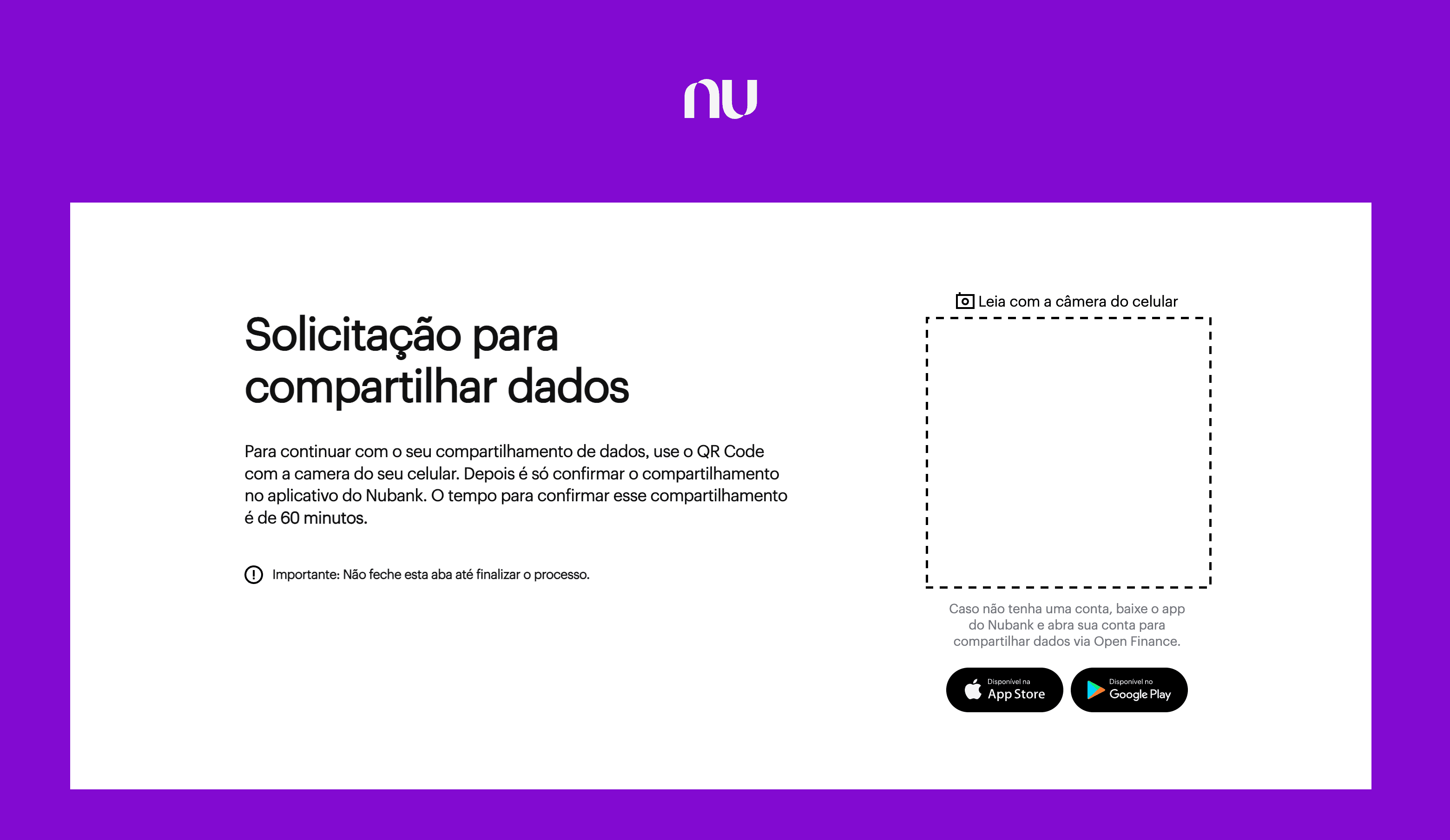
In the Manio dashboard, go to Bank Connections and select Nubank. You are redirected to Nubank's official Open Finance consent screen. Log in with your regular credentials on Nubank's servers and choose which accounts to share. The consent is valid for up to 12 months and can be revoked at any time from the Nubank app. Want to understand how Open Finance protects your data? Read our guide on Open Finance security.
Step 3: Add Notion as a Destination
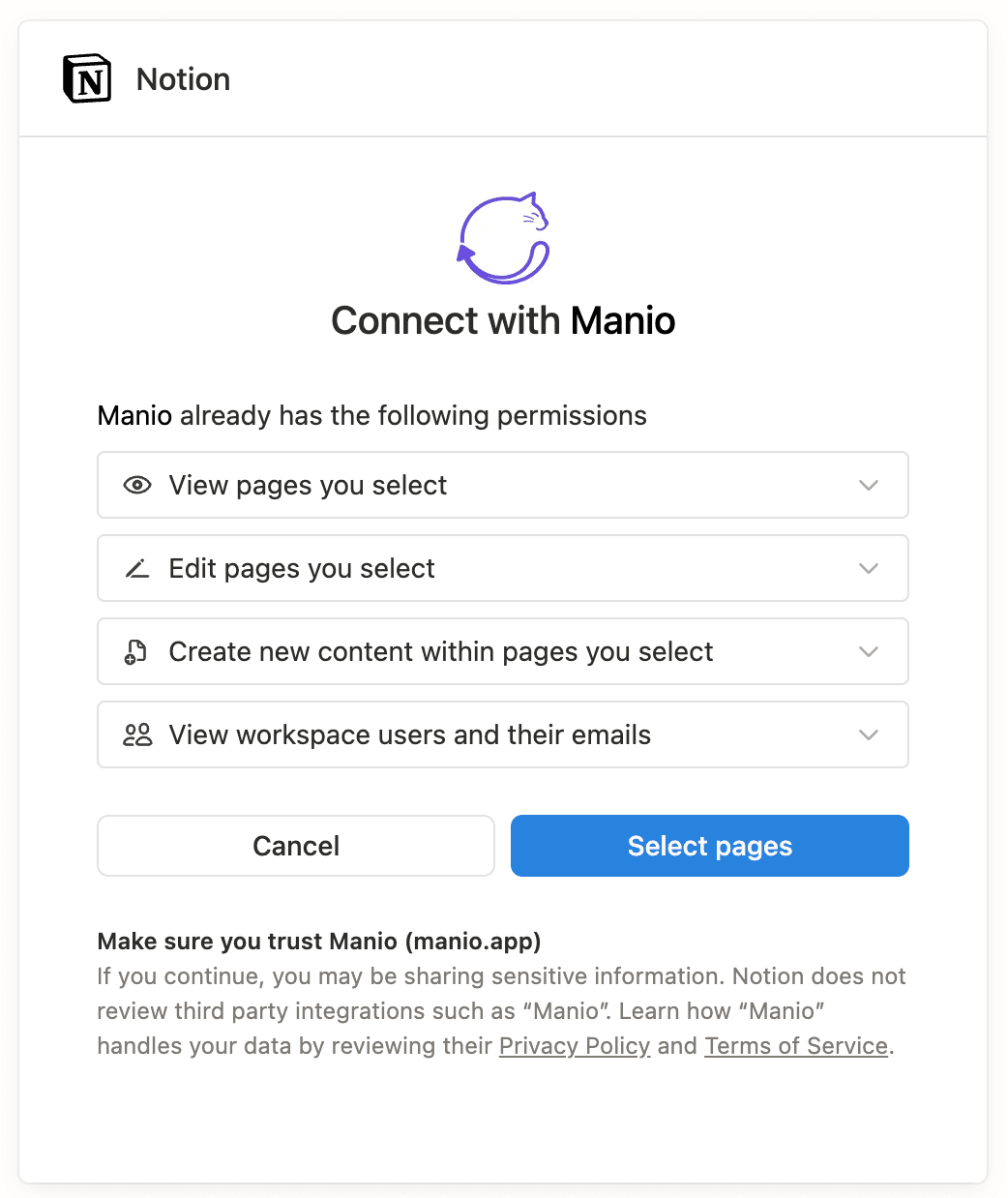
Go to Destinations and select the Manio Notion integration. Authorise through Notion's official OAuth flow, select your workspace, and choose the database you created in Step 1. When Notion asks which pages to share, make sure to select the page where your transactions database lives.
Step 4: Sync
Trigger the initial sync. On the Pro plan, Manio imports all the Nubank history available via Open Finance (typically around 12 months), and creates a Notion entry for each transaction. On the Trial plan, the first sync covers up to 30 days. From then on, new transactions are added automatically on each sync cycle.
Building Useful Views in Notion
Weekly Inbox
Filter: Reviewed = unchecked. This is your weekly routine. Open the view, categorise each Nubank transaction, check it off. When the list is empty, you are done. Notion remembers your frequently used categories, so this gets faster over time.
Monthly Spending by Category
Filter: Date = this month + Amount < 0. Group by Category. Add a sum on Amount. This view shows exactly where your money is going, updated automatically as new transactions arrive.
Credit Card Dashboard
Filter: Account = Nubank Credit Card. Group by month. This is essential for anyone who uses the Nubank credit card heavily. Each future instalment appears in the corresponding month, giving you visibility into how much of your upcoming bills is already committed.
Top Recurring Expenses
Group by Description and sort by count. Entries that appear every month are your subscriptions and fixed expenses like Netflix, Spotify, gym, and health insurance. A quick way to spot forgotten subscriptions you are still paying for.
Nubank Credit Card Instalments in Notion
The Nubank credit card is their most popular product, the one that launched the company. Through Open Finance, instalment purchases are broken down into individual monthly entries. This is valuable because it shows your actual monthly commitment rather than just the original purchase amount.
In your Notion database, you can create a view filtered to future months to see exactly how much of your credit card capacity is already spoken for. This forward-looking view is something the Nubank app itself does not provide clearly.
Combining Nubank with Other Banks
If you have accounts at other banks like Itau, Bradesco, Inter, or C6 Bank, you can connect them all through Manio and send everything to the same Notion database. The Account property distinguishes where each transaction came from, and you can filter by bank or view everything together for a complete financial picture.
Notion vs. Sheets vs. YNAB
Each tool has its strengths, and Manio supports all of them:
- Notion: best if you already live in Notion and want to centralise everything. Most flexible structure, integrates with other life areas
- Google Sheets: best for advanced formulas, pivot tables, and sharing with an accountant
- YNAB: best for structured zero-based budgeting methodology. See how to sync Nubank to YNAB
You can even use multiple destinations simultaneously. Connect your bank once and route transactions to Notion and another tool at the same time. Manio's Trial plan includes 1 bank connection, daily sync, and 50 syncs. The Pro plan (R$24.99/month, or R$239.88/year) gives you unlimited syncs, up to 4 banks, sync every 8 hours, full history, and AI categorization.
For more ideas on building a complete Notion finance system, check out our guide on using Notion for personal finance with bank sync. And for a general overview of bank data automation into Notion, see how to automate bank data to Notion.
If you prefer spreadsheets, see how to sync Nubank to Google Sheets.
Frequently Asked Questions
Does Manio modify entries I have already edited in Notion?
No. Manio only adds new entries to the database. It never modifies, moves, or deletes existing entries. Your categorisations, notes, and custom property values remain untouched.
Does it work with the free Notion plan?
Yes. The Notion API is available on all plans, including the free tier. You do not need Notion Plus or Business to use the Manio integration.
Are checking account and credit card transactions separated?
Yes. Each transaction has an Account property indicating whether it came from the checking account or the credit card. This lets you create filtered views for each product or see everything together.
Can I sync other banks besides Nubank into the same database?
Yes. Manio works with all Open Finance Brasil banks. You can connect Nubank and Itau, for example, and send everything to the same Notion database. The Account property identifies the source of each transaction.
Do I need to know how to code or use the Notion API?
No. All configuration is done through the Manio dashboard, with no code required. Manio handles the Notion API communication automatically. You only need to authorise access and select the target database.