How to Sync Bradesco to Google Sheets Automatically
If you have ever tried exporting your Bradesco bank statement into Google Sheets, you already know the pain: CSV files with broken character encoding, date formats that change depending on the account type, and decimal separators that alternate between commas and periods. Bradesco is one of Brazil's five largest banks, serving tens of millions of customers, yet its data export tools feel like they were designed before spreadsheets existed. This guide shows you how to bypass all of that and get your Bradesco transactions flowing into Google Sheets automatically.

The Bradesco CSV Problem
Bradesco's internet banking exports CSV files encoded in Latin-1 (ISO-8859-1). Google Sheets expects UTF-8. The result: accented characters, which are extremely common in Portuguese, turn into garbled symbols. "Padaria São José" becomes an unreadable string of question marks and special characters.
Beyond encoding, the CSV format itself is inconsistent. Checking account exports use one column layout, credit card exports use another, and savings account exports may use yet another. If you have multiple Bradesco credit cards (the bank issues Visa, Mastercard, Elo, and American Express), each may format data slightly differently.
For anyone trying to build a financial tracking spreadsheet, this means spending more time cleaning data than actually analysing it. The Bradesco mobile app, which most customers use daily, does not offer any structured data export at all. You can view your statement on screen but cannot extract it into a usable format.
The Solution: Open Finance Brasil + Manio
Brazil's Central Bank (Banco Central) mandated Open Finance Brasil in 2021, requiring all major banks to provide standardised APIs for customer-consented data sharing. Bradesco is a full participant, which means your checking, savings, and credit card data is available through a clean, structured API with no CSV files involved.
Manio is an authorised Open Finance Brasil participant that reads from this API and writes transaction data directly into your Google Sheets spreadsheet via the Manio Google Sheets integration. The data arrives already formatted, with correct encoding, consistent date formats, and clean merchant descriptions. Want to understand how Open Finance protects your data? Read our guide on Open Finance security.
Step-by-Step Setup
Step 1: Prepare Your Spreadsheet
Create a new Google Sheets spreadsheet. You can use Manio's template (available after sign-up) or start with a blank sheet. If starting from scratch, add headers in row 1: Date, Description, Amount, Type, Account, Transaction ID. You can add extra columns like "Category" and "Notes" for your own organisation later.
Step 2: Connect Bradesco via Open Finance
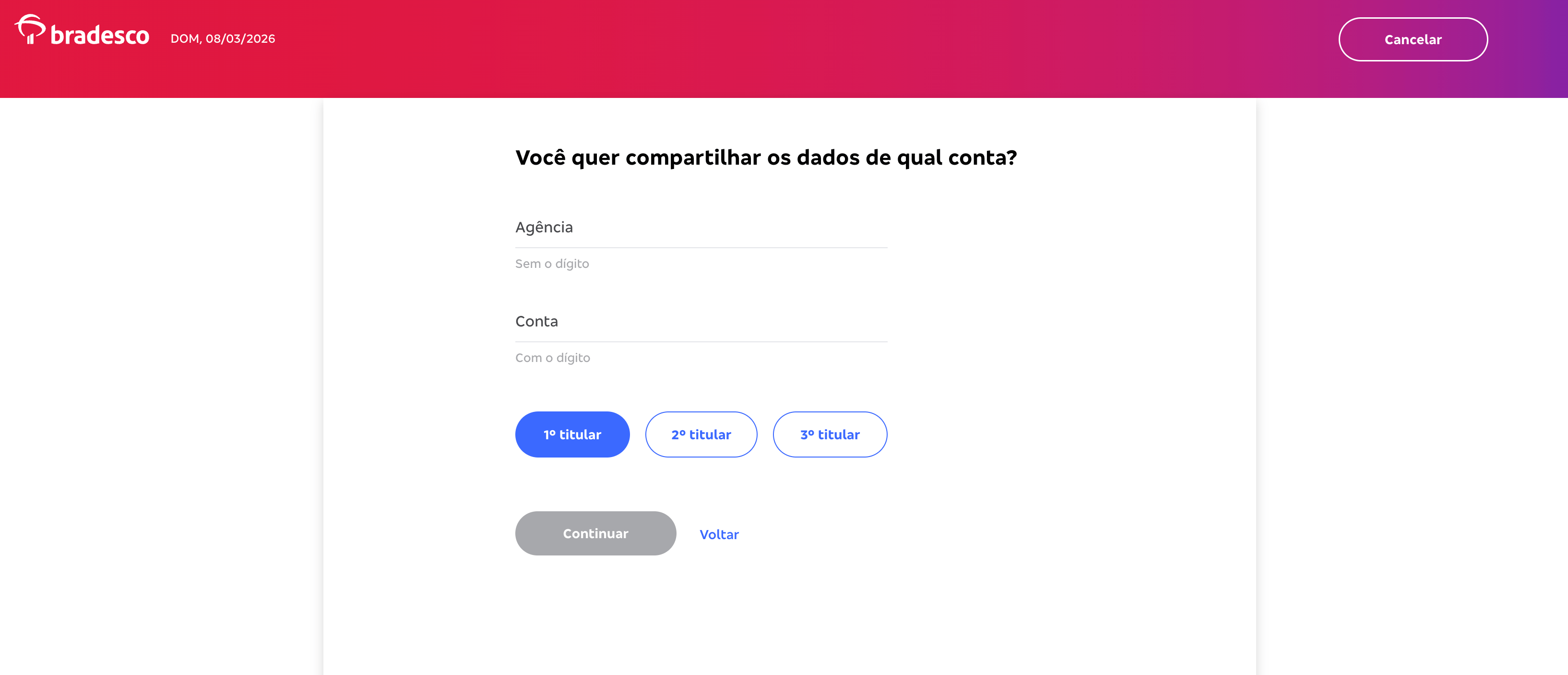
In the Manio dashboard, go to "Bank Connections" and select Bradesco. You will be redirected to Bradesco's official Open Finance consent screen. Log in with your normal Bradesco credentials on Bradesco's own servers. Manio never touches your password.
Choose which accounts to share: checking, savings, credit cards (all card networks are included), or everything. The consent is valid for up to 12 months and can be revoked at any time from the Bradesco app.
Step 3: Add Google Sheets as a Destination
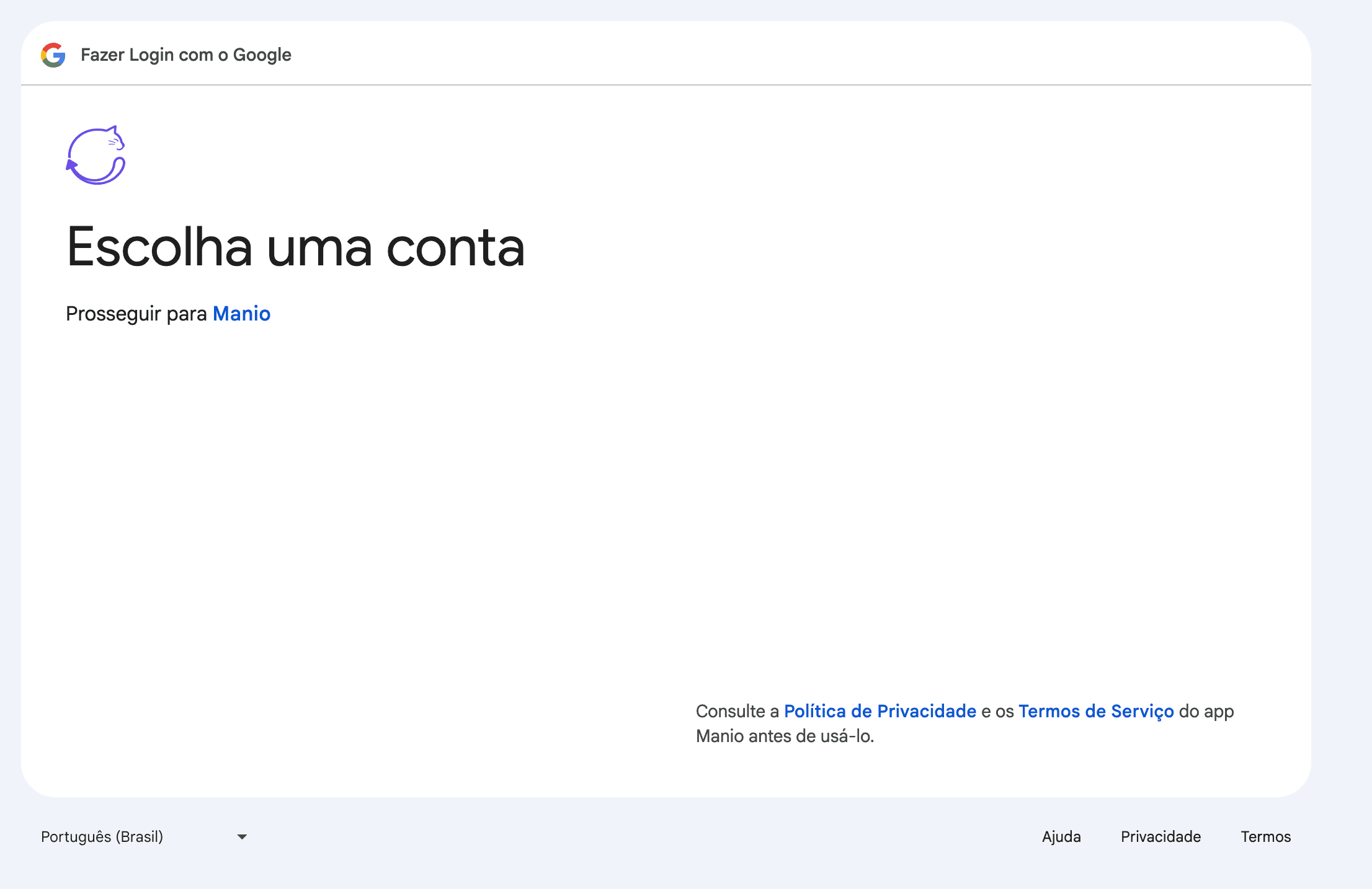
Under "Destinations", select Google Sheets. Authorise Manio to access your Google account via OAuth and select the specific spreadsheet that will receive transactions.
Step 4: Map Accounts
Link each Bradesco account to a sheet tab. You have two approaches:
- Single tab: all accounts in one tab, differentiated by the "Account" column. Simpler and good for people with few accounts.
- Separate tabs: one tab per account type. Better for detailed analysis when you have multiple credit cards alongside checking and savings.
Step 5: Run Initial Sync
Trigger the first sync from the Manio dashboard. On the Pro plan, Manio imports all the history the bank makes available via Open Finance (typically around 12 months). On the Trial plan, the first sync covers up to 30 days. After that, new transactions are added automatically on a regular schedule.

What Appears in Your Spreadsheet
Each synced transaction creates a new row with structured data:
- Date: consistent format, no variation between account types
- Description: merchant name, cleaned for readability
- Amount: in BRL, positive for income, negative for expenses
- Type: Pix, TED, bill payment, debit purchase, credit card instalment, etc.
- Account: which Bradesco product originated the transaction
- Transaction ID: unique identifier to prevent duplicates
The critical difference from manual CSV imports: the data always arrives in the same format with correct encoding. Accents are accents, commas are commas, dates are dates. You never need to "clean" data before analysing it.
Building Financial Analysis on Top of Your Data
Monthly Dashboard
Create a "Summary" tab with SUMIFS formulas that calculate total income and expenses per month. With data flowing automatically, your dashboard updates itself. Add a bar chart to visualise trends over time.
Credit Card vs. Debit Spending
Since Bradesco offers both checking accounts and multiple credit card networks, a useful analysis is comparing credit vs. debit spending patterns. A pivot table grouped by Account and Month gives you this breakdown in seconds.
Budget vs. Actual
Add a budget column next to your actual spend per category. Use conditional formatting to highlight categories where you have exceeded your budget. Simple, visual, and effective.
Google Apps Script Automations
With structured data arriving automatically, you can build Google Apps Script automations on top. For example: a script that runs every Friday, checks if your dining-out spending has exceeded a threshold, and sends you an email alert. The possibilities are limited only by your imagination.
Consolidating Multiple Banks
If you bank with Bradesco and other institutions, you can connect them all to Manio and send everything to the same spreadsheet. The Account column identifies where each transaction came from. This gives you a consolidated financial view that no single bank's statement can provide.
See also how to sync Nubank, Itau, and Inter to Google Sheets. For more on multi-bank setups, see how to sync Brazilian bank transactions to Google Sheets. For advanced spreadsheet automation ideas, check out how to automate bank transactions to Google Sheets.
If you also use YNAB for budgeting, see how to sync Bradesco to YNAB.
Google Sheets vs. Finance Apps
Apps like Organizze, Mobills, and GuiaBolso offer built-in bank connections and are easier to set up. They are good choices for people who want a ready-made solution. But Google Sheets excels when you want full control: custom formulas, tailored dashboards, sharing with a partner or accountant, integration with Google Data Studio (Looker Studio), and complete ownership of your data.
With Manio handling the data pipeline (pulling from Bradesco, formatting, and writing to Sheets), you focus on the analysis, not the data entry.
Frequently Asked Questions
Is the Bradesco CSV encoding still broken?
Yes, as of this writing Bradesco's manual CSV export still uses Latin-1 encoding, which causes display issues in Google Sheets. With Manio, this problem does not exist. Data comes directly from the Open Finance API in a standardised format.
Can I sync all Bradesco credit card brands (Visa, Mastercard, Elo, Amex)?
Yes. Bradesco's Open Finance integration includes all credit cards tied to your account, regardless of the card network.
Is the spreadsheet updated in real time?
Not in real time, but on a regular schedule. On the Trial plan, sync runs daily (50 syncs included). On the Pro plan (R$24.99/month, or R$239.88/year), every 8 hours with unlimited syncs. In practice, when you open your spreadsheet in the morning, the previous day's transactions are already there.
How much does Manio cost?
Manio's Trial plan includes 1 bank connection, daily sync, and 50 syncs. The Pro plan costs R$24.99/month (or R$239.88/year), with unlimited syncs, up to 4 banks, sync every 8 hours, full history, and AI categorization.
Can I use Manio with Google Sheets and YNAB simultaneously?
Yes. Manio supports multiple destinations at the same time. You can send Bradesco transactions to Google Sheets for analysis and to YNAB for zero-based budgeting, all from the same connection.