Automate Your Bank Transaction Exports to Google Sheets
If you are still downloading CSV files from your bank and pasting them into Google Sheets every week, you already know the problem. It is repetitive, it is error-prone, and you have to remember to do it. Forget for a week and you are spending Saturday morning catching up on two weeks of transactions. There is a much better approach.

The Old Way: Manual CSV Exports
The traditional workflow for getting Brazilian bank data into Google Sheets looks like this:
- Log into internet banking (separate from your mobile app)
- Find the export or download section
- Select a date range and download a CSV or OFX file
- Open Google Sheets
- Import the file, dealing with encoding issues, wrong delimiters, or mismatched column names
- Manually clean up merchant names, remove header rows, format dates consistently
- Check for duplicate rows from overlapping date ranges
- Repeat for every bank account
This process works, but it requires discipline, time, and attention to detail. Most people do it consistently for a month or two, then let it slide when life gets busy, which defeats the whole purpose of tracking your finances.
The New Way: Open Finance Brasil + Manio
Brazil's Open Finance regulation mandates that participating banks expose standardised APIs for customer-consented data sharing. Manio is an authorised Open Finance Brasil participant that reads your transaction data through these APIs and writes it directly to Google Sheets.
The Manio Google Sheets integration replaces the entire manual workflow. You set it up once, and it runs automatically: every day on the Trial plan, or every 8 hours on the Pro plan.
Why Automation Changes the Game
Consistency
Manual processes are only as good as your discipline. Automated processes run whether you remember them or not. Your spreadsheet stays current even when you are travelling, sick, or simply busy.
Data Quality
CSV exports from Brazilian banks are notorious for encoding problems. The raw OFX data from Open Finance Brasil is standardised and clean. Manio also applies merchant name normalisation before writing to your sheet, so you see "Supermercado Pão de Açúcar" instead of "PDAAB2204SC".
Completeness
Manual importers frequently miss transactions because of gaps between export windows. Manio's incremental sync tracks exactly what has been imported using transaction IDs from the Open Finance API. No transaction is ever skipped or duplicated.
Multi-Bank Support
If you bank with Nubank and Itaú, you had to do two separate CSV exports and manage two separate import workflows. With Manio, you connect all your banks once and all their transactions flow to the same Google Sheet automatically, tagged by account so you can filter or pivot on them.
What the Automation Looks Like in Practice
After setup, your Google Sheets experience is simple:
- Open your spreadsheet in the morning
- Yesterday's transactions are already there (daily on Trial, every 8 hours on Pro)
- Add categories in your "Category" column
- Your summary formulas update automatically
No downloading. No importing. No cleanup. Just the financial analysis you actually want to do.
Setting Up the Automation
1. Sign up for Manio
Create an account at Manio. The Trial plan includes 1 bank connection, daily sync, and 50 syncs to get started.
2. Connect Your Bank
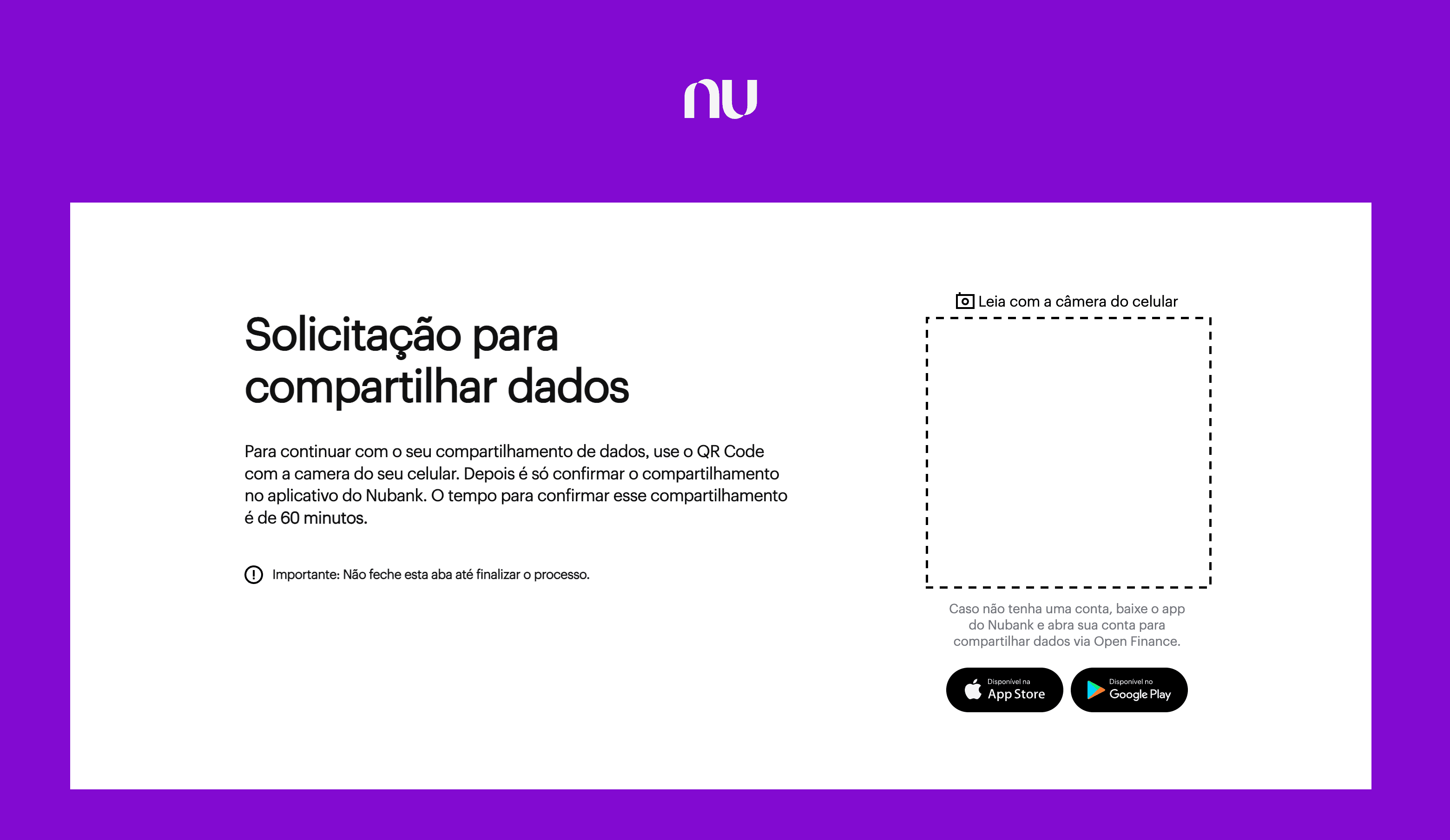
Add your bank in the Manio dashboard. You will be redirected to your bank's Open Finance consent screen to authorise the data connection. Manio never receives your banking password.
3. Connect Google Sheets
In Destinations, add Google Sheets. Authorise Manio to write to your Google account, then select the spreadsheet you want to use.

4. Create Account Links
Map your bank accounts to sheets. You can use a single sheet for all accounts or separate sheets by bank or account type.
5. Trigger First Sync
Run an initial sync. On the Pro plan, Manio imports all the history the bank makes available via Open Finance (typically around 12 months). On the Trial plan, the first sync covers up to 30 days. Subsequent syncs happen automatically.
Advanced: Using Google Apps Script with Synced Data
Once you have a reliable stream of transaction data, Google Apps Script opens up powerful possibilities. You can write scripts that automatically categorise transactions based on keyword matching, send email alerts when spending in a category exceeds a threshold, or generate monthly summary emails. Because Manio writes structured data with consistent column names, your scripts will work reliably every time.
Security Considerations
Connecting your bank to Google Sheets through Manio is actually more secure than the manual CSV approach. With CSV files, you create local files containing sensitive financial data that can be accidentally shared, synced to public cloud folders, or accessed by other applications. With Open Finance, data travels directly from your bank's secured API to Google's servers. No local files are created. Want to understand how Open Finance protects your data? Read our guide on Open Finance security.
For bank-specific guides, see how to sync Nubank, Itau, Bradesco, and Inter to Google Sheets. If you also want automatic sync in Notion, check out how to automate bank data in Notion. And for a comparison of all export methods, read the best way to export bank data to Google Sheets.