How to Sync Nubank to Google Sheets Automatically
Nubank is Brazil's largest digital bank, with over 90 million customers. It offers a checking account (conta corrente), a no-fee credit card, Pix integration, and an investment platform called NuInvest. If you use Google Sheets to manage your personal finances, you have probably tried to export your Nubank data and paste it into a spreadsheet. The result is usually disappointing: broken character encoding, inconsistent column formats between checking and credit, and the whole thing needs to be repeated every week. This guide shows you how to automate the entire process.

The Problem with Nubank's Manual Export
Nubank lets you export your statement as a PDF or CSV from the app. The CSV export has several known issues. Character encoding often breaks when opened in Google Sheets. Accented characters in merchant names (common in Portuguese) appear as garbled symbols. The export covers a limited date range, and the column structure differs between checking account and credit card exports, which means you need separate processing for each.
For a one-time analysis, this is workable. For an ongoing personal finance spreadsheet that you update weekly, it is not sustainable. Most people give up within a month.
Open Finance Brasil: A Better Way to Access Your Data
Open Finance Brasil is a regulatory framework created by Brazil's Central Bank (Banco Central) in 2021. It requires major financial institutions to provide secure APIs that allow customers to share their own financial data with authorised third-party services.
Nubank was among the first banks to fully implement the Open Finance APIs. As a digital-native bank, its infrastructure was already suited for this. The data you get through Open Finance is structured, consistent, and free of the encoding issues that plague CSV exports. The consent process happens entirely within Nubank's own servers. You log in with your regular Nubank credentials, approve the data sharing, and the third-party service receives a read-only access token. Your password is never shared. Want to understand how Open Finance protects your data? Read our guide on Open Finance security.
How to Set Up Automatic Nubank to Sheets Sync
Manio is an authorised Open Finance Brasil participant. It reads your Nubank transactions through the official API and writes them directly to Google Sheets. Here is how to set it up.
Step 1: Connect Nubank via Open Finance
In the Manio dashboard, go to Bank Connections and select Nubank. You will be redirected to Nubank's official Open Finance consent screen. Log in with your regular Nubank credentials on Nubank's servers and choose which accounts to share: checking account, credit card, or both. Manio never sees your password.
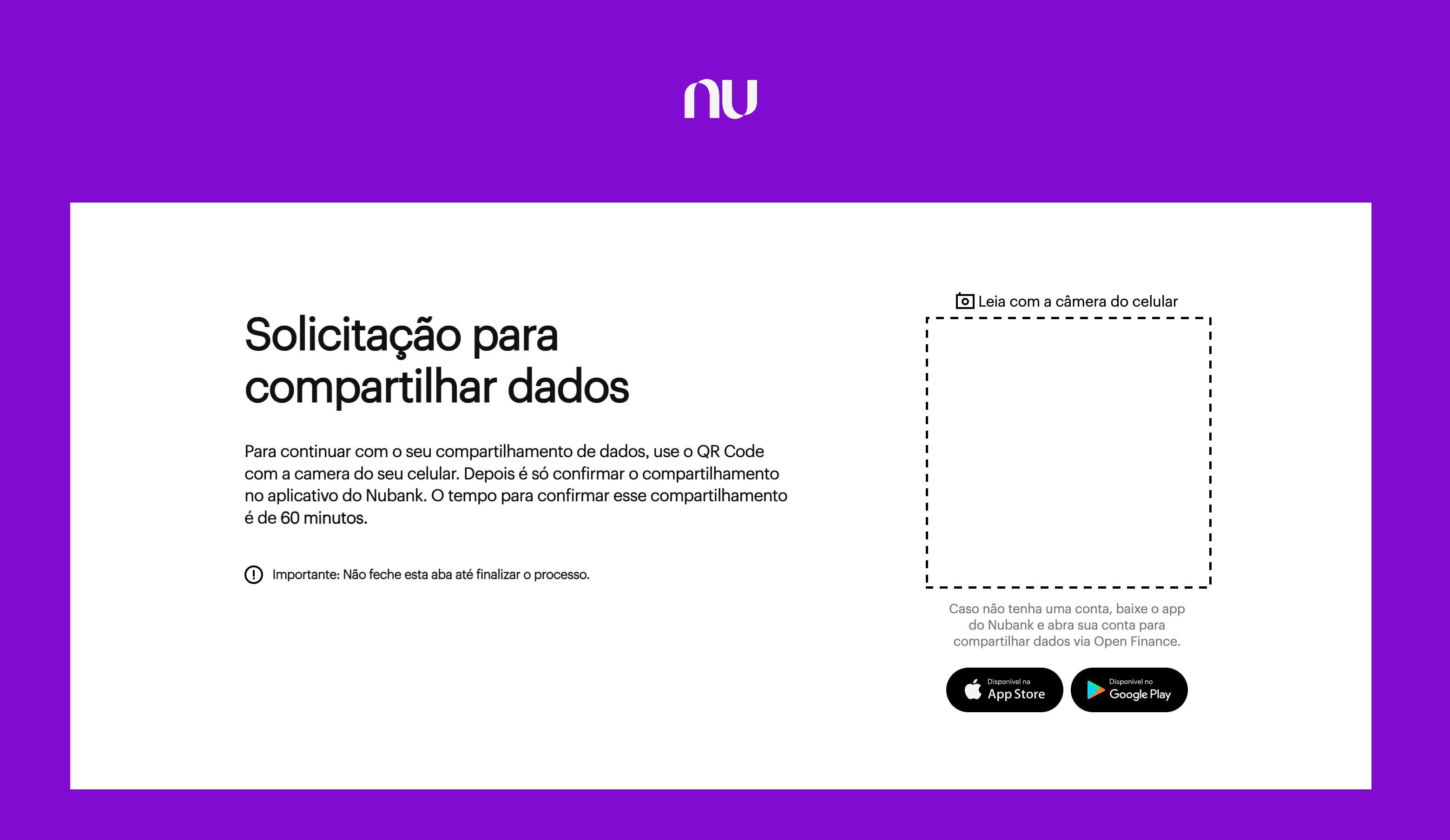
Step 2: Add Google Sheets as a Destination
Go to Destinations and select Google Sheets. Authorise Manio to access your Google account via Google's official OAuth flow. Select the spreadsheet where transactions should be written.
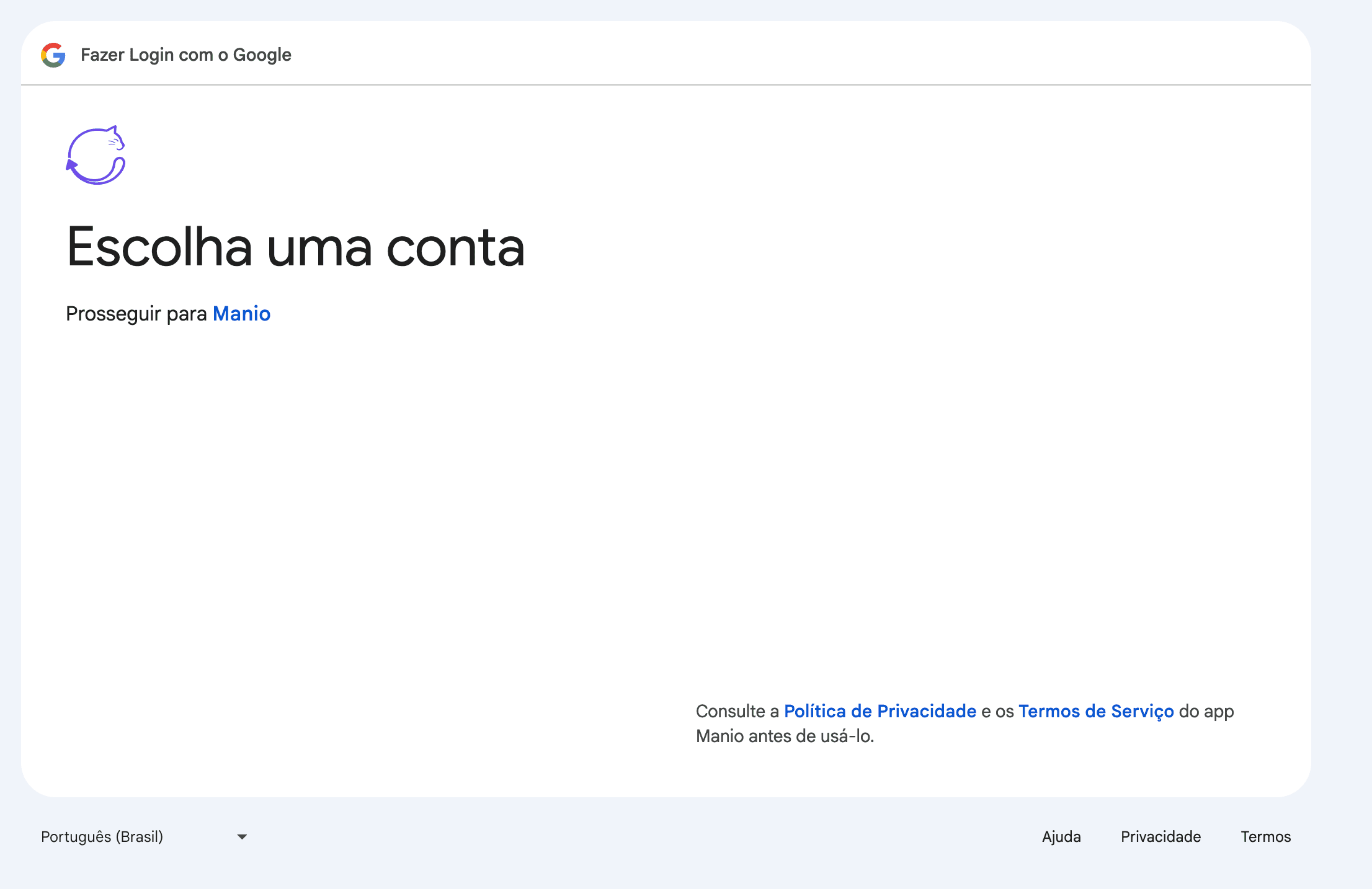
Step 3: Map Your Accounts
Link each Nubank account to a tab in your spreadsheet. You can put everything in one tab (using the Account column to distinguish) or create separate tabs for checking and credit card. One tab works well for most people.
Step 4: Run the First Sync
Trigger the initial sync. On the Pro plan, Manio imports all the Nubank history the bank makes available via Open Finance (typically around 12 months). On the Trial plan, the first sync covers up to 30 days. After that, new transactions are added automatically on each sync cycle. No CSV downloads, no copy-pasting, no encoding headaches.

What Appears in Your Spreadsheet
Each synced Nubank transaction creates a new row with:
- Date: transaction date, properly formatted
- Description: merchant name or counterparty, cleaned up by Manio for readability
- Amount: value in BRL, positive for income, negative for expenses
- Type: Pix, debit purchase, credit card instalment, TED, bill payment, internal transfer
- Account: identifies whether it came from Nubank checking or Nubank credit card
- Transaction ID: unique identifier to prevent duplicates
Nubank via Open Finance provides data from both the checking account (debit purchases, Pix transfers sent and received, TEDs, bill payments) and the credit card (individual purchases including instalments). This is significantly richer than the app's CSV export, which uses different formats for each product.
Nubank Credit Card Data in Sheets
Nubank's credit card is their flagship product. It was the original product that launched the company. Through Open Finance, every credit card purchase shows up as an individual transaction, including instalments. If you bought something in 6 monthly instalments, you will see 6 separate entries, one for each month the charge appears on your statement.
This makes it possible to build a formula that calculates your total committed future instalments, giving you a clear picture of how much of your upcoming credit card bills is already decided. This kind of forward-looking analysis is impossible with the basic app view.
Analysis Ideas for Nubank Data in Sheets
Credit vs. Debit Spending
Use SUMIFS to filter by the Account column. Create a pie chart comparing how much you spend through your Nubank credit card versus your checking account. Many people discover they are spending far more on credit than they realised, simply because the payment is deferred.
Pix Spending Tracker
Filter by Type = Pix and group by month. Pix has fundamentally changed spending patterns in Brazil, and many people are surprised by how much leaves their account via Pix each month. Informal payments, food delivery, group collections, and small transfers add up quickly.
Monthly Trends
Build a summary table using SUMIFS by month and category. Add a stacked bar chart. With 3-4 months of data, patterns emerge clearly, and it becomes much easier to decide where to cut.
Why Not Just Use the Nubank App?
The Nubank app is excellent for everyday banking: checking your balance, sending Pix, paying bills. But it is not a financial analysis tool. You cannot create custom categories, view long-term trends, compare months, or calculate averages. The app shows what happened; a spreadsheet shows what it means for your finances.
And if you have accounts at other banks besides Nubank, the app cannot consolidate anything. With Google Sheets and Manio, you can connect Nubank, Itau, Bradesco, Inter, and more in one spreadsheet, with a unified view. For a broader overview, read our guide on syncing Brazilian banks to Google Sheets.
Manio vs. Other Options
Before Open Finance automation, the alternatives for getting Nubank data into a spreadsheet were all manual or semi-manual. Apps like Organizze and Mobills connect to banks but keep data locked in their own interface and do not export to Sheets automatically. GuiaBolso connects to your bank but the data stays inside the app.
Manio is not a finance app. It is a bridge between your bank and your preferred tools. Want Google Sheets? Done. Want YNAB? See how to sync Nubank to YNAB. Prefer Notion? See how to sync Nubank to Notion. The data is yours, and you choose where it goes.
See also how to sync Itau, Bradesco, and Inter to Google Sheets.
Frequently Asked Questions
Do I need to export a CSV from Nubank and import it manually?
No. With Manio, the sync is fully automatic. You do not need to open the Nubank app, download any files, or upload anything. Data flows from Nubank to Sheets via the Open Finance API without manual intervention.
Are checking account and credit card transactions combined?
They are separated by the Account column. You can keep them in the same tab and filter, or use separate tabs. The choice is yours. Both accounts are synced automatically.
How much transaction history is available on the first sync?
On the Pro plan, Manio imports all the history the bank makes available via Open Finance, typically around 12 months for most Brazilian banks. On the Trial plan, the first sync covers up to 30 days. Older transactions beyond what the bank exposes through Open Finance are not available.
Does Nubank charge anything for the Open Finance connection?
No. Sharing your data via Open Finance is free. It is your right as a customer, regulated by Brazil's Central Bank. Manio's Trial plan includes 1 bank connection, daily sync, and 50 syncs. The Pro plan costs R$24.99/month (or R$239.88/year), with unlimited syncs, up to 4 banks, sync every 8 hours, full history, and AI categorization.
Can I revoke access at any time?
Yes. Go to Open Finance settings in the Nubank app and revoke Manio's consent. Data already sent to your spreadsheet remains there, but no new transactions will be synced.