The Best Way to Export Bank Data to Google Sheets
There are several ways to get your Brazilian bank data into Google Sheets. Some are free but tedious. Some are paid but powerful. Some are deprecated and no longer work. This article breaks down every option and explains which is actually the best for most people.

Option 1: Manual CSV Export and Import
Every major Brazilian bank allows you to export your transaction history as a CSV or OFX file through internet banking. You can then import this file into Google Sheets manually.
The Process
- Log into internet banking
- Navigate to transactions or statement
- Choose a date range and export format
- Open Google Sheets, use File → Import
- Clean up columns, fix date formats, remove headers
Pros
- Free
- Works with any bank
- No third-party access required
Cons
- Time-consuming, typically 10-20 minutes per bank per week
- Requires discipline and consistency
- Brazilian bank CSV files often have encoding problems
- Easy to create duplicate rows with overlapping date ranges
- No automation possible, someone has to do it manually each time
Verdict: Works, but not recommended for ongoing use.
Option 2: OFX Import via Google Sheets Add-ons
Several Google Sheets add-ons claim to parse OFX files and import them into sheets automatically. In practice, these tend to be fragile: they break when banks change their OFX format, they require you to still manually download the file and trigger the import, and the add-on market has many abandoned or poorly maintained tools.
Verdict: Not worth the complexity. Similar limitations to manual CSV.
Option 3: Screen Scraping Services
Some older services work by logging into your bank account on your behalf using your credentials and scraping the transaction data from the website. This practice has become increasingly problematic: banks actively try to block it, it violates most bank terms of service, and it requires giving a third party your actual banking password. Since Open Finance Brasil launched, this approach is also unnecessary.
Verdict: Do not use. Security risk and against bank terms of service.
Option 4: Open Finance Brasil + Manio (Recommended)
This is the modern, regulatory-approved way to get Brazilian bank data into Google Sheets automatically. Open Finance Brasil is a mandatory framework that requires participating banks to expose customer transaction data through secure, standardised APIs, with explicit customer consent.
Manio's Google Sheets integration uses these APIs to pull your transactions and write them to a Google Spreadsheet on a regular schedule. No manual work required after the initial setup.
Why Open Finance Is Superior
- No password sharing: You authorise through your bank's own consent interface
- Read-only access: The API scope for transaction data cannot initiate payments
- Standardised data: All banks return data in the same format, so Manio handles them uniformly
- Official and stable: The API is maintained by the banks themselves, not scraped
- Fully automated: Once set up, no human intervention needed
- Deduplication built in: Transaction IDs prevent duplicate rows in your sheet
Want to understand how Open Finance protects your data? Read our guide on Open Finance security.
Data Quality: Open Finance vs. CSV
One significant advantage of Open Finance data over CSV exports is quality. The Open Finance Brasil standard specifies exactly what fields must be returned and in what format. This means:
- Dates are always in ISO 8601 format (no Brazilian dd/mm/yyyy surprises)
- Amounts are numeric, not strings with currency symbols
- Transaction types (Pix, TED, boleto) are standardised codes
- Merchant/counterparty names are returned consistently
Manio additionally applies merchant name normalisation, so instead of bank-raw names like "PIX 12345678901 JOAO" you see cleaned, readable names.
Setting Up Manio with Google Sheets
The setup process takes about 5 minutes:
- Create a Manio account
- Connect your bank via Open Finance consent
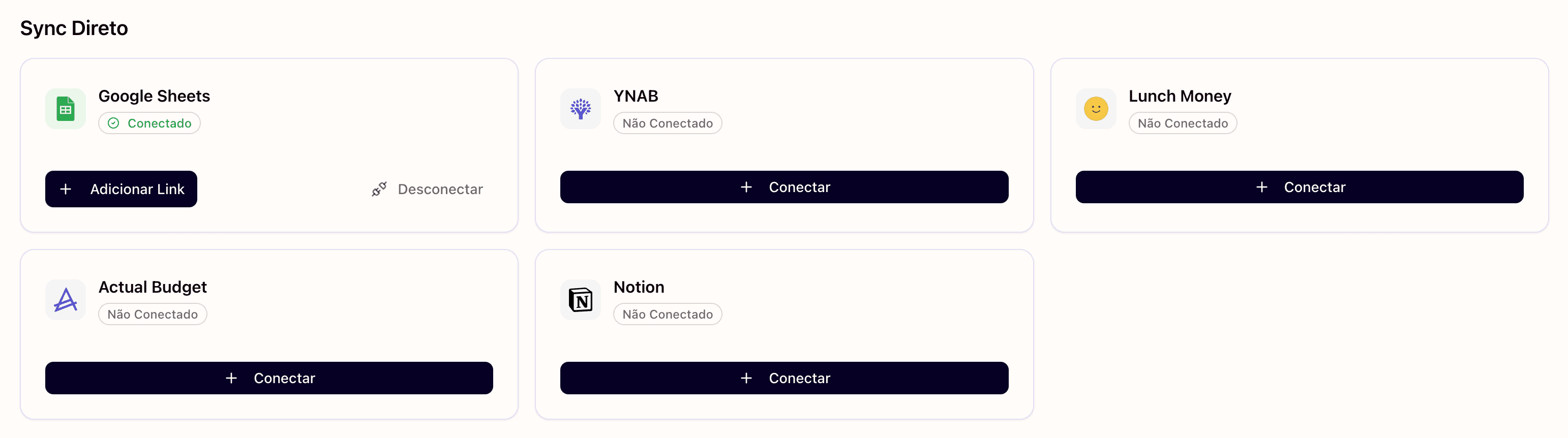
- Add Google Sheets as a destination
- Select your target spreadsheet
- Map your bank accounts to sheet tabs
- Run initial sync
After that, Manio runs automatically. The Trial plan syncs daily (50 syncs included); the Pro plan every 8 hours with unlimited syncs.

How Many Banks Can You Connect?
On the Trial plan, you can connect 1 bank (50 syncs included). On the Pro plan, up to 4 banks with unlimited syncs. If you have accounts at Nubank, Itaú, and Bradesco, you can connect all three and have all their transactions flowing into a single Google Sheet, differentiated by the Account column.
For bank-specific guides, see how to sync Nubank, Itau, Bradesco, and Inter to Google Sheets. If you also want to track transactions in Notion, see how to automate bank data in Notion. Manio supports both destinations simultaneously.